How to apply to startup programs with Claude Code and getfund
The getfund plugin gives Claude Code your company brain, your queue of programs and a browser tool in one install. The agent asks for what your brain is missing, fills the program's own form in a Chrome window you can watch and submits only after you say yes. getfund then saves the proof on your tracker.
Before you start
- Claude Code 2.1.292 or newer: run claude --version to check.
- Chrome and Node.js on your computer: the browser tool starts Chrome through npx.
- The Autopilot plan for applications: without it the agent reads your brain and drafts answers in the chat.
Step by step
Install the plugin
Paste this line in a terminal. It adds the getfund server, its skill and the browser tool that fills your forms, for every folder you work in.
Terminalclaude plugin install getfund --marketplace bilalsengul/getfund-agentSign in to getfund
Start claude in a terminal and type /mcp. Pick plugin:getfund:getfund, choose Authenticate, then sign in to getfund in the browser tab that opens and press Approve. The tab tells you to return to Claude Code, where getfund now shows as connected.
The plugin names the server plugin:getfund:getfund, so claude mcp login getfund cannot find it: sign in with /mcp.
Type in Claude Code/mcpSay getfund
Type getfund. Claude Code loads the getfund skill and checks your account, your plan and what your company brain still needs.
When your agent asks, press Always allow once per tool, so later runs go through without stopping.
Type in Claude CodegetfundAnswer the setup questions
On the first run the agent reads what your company brain is missing and asks a few questions at a time, in your language. It saves your answers to the brain, tagged as added by the agent, and you can edit them on getfund later.
When the brain has what it needs, the agent tells you how many programs are in your queue and asks which one to apply to. With an empty queue it suggests matching programs and adds only the ones you pick.
Apply to your first program
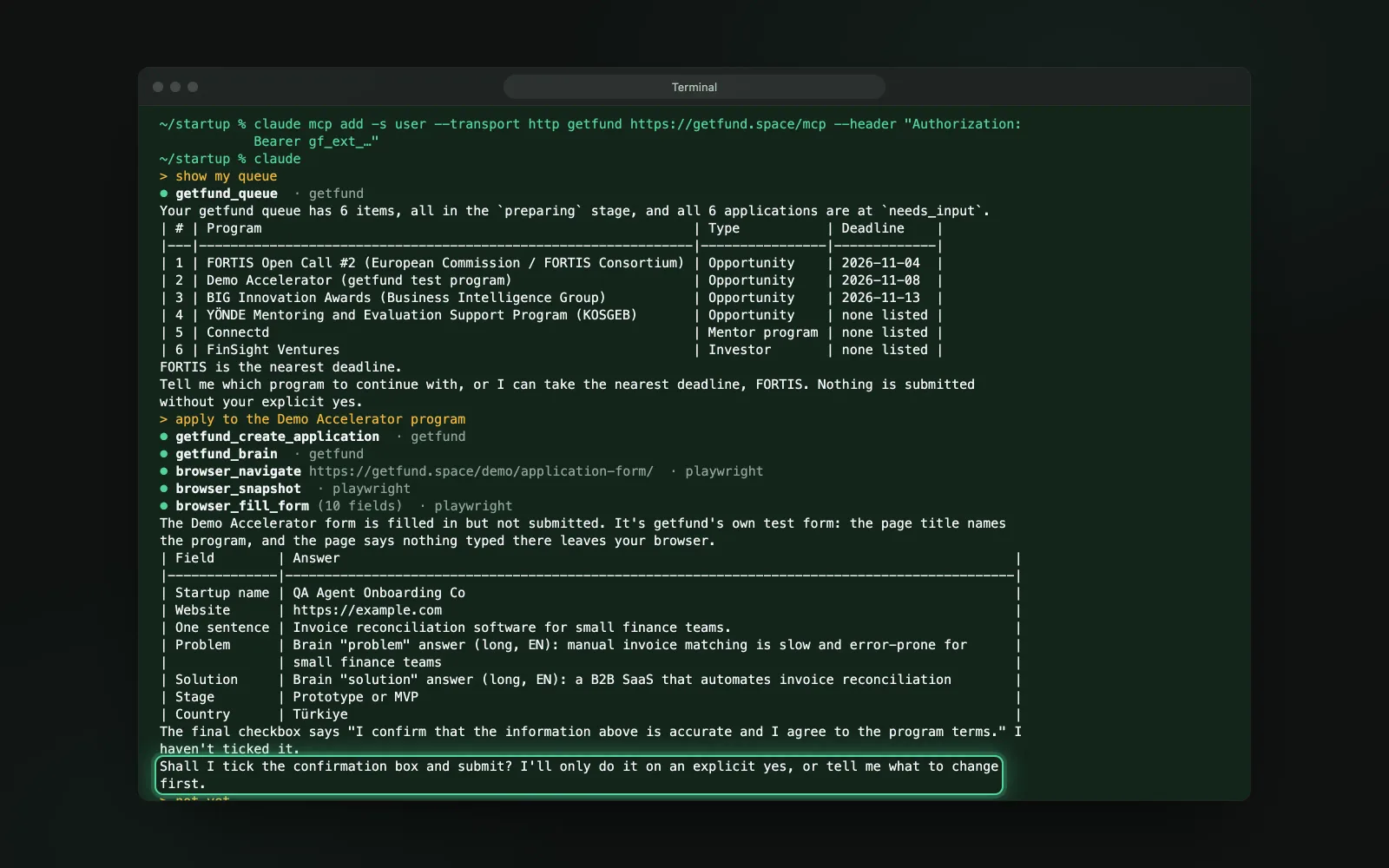
Say apply to and the program's name. The agent opens the program's own application form in a Chrome window you can watch, fills every field it has an answer for and asks you about the rest. On a sign-in page or a captcha it hands the window to you and waits.
When the form is filled it sums up what it wrote and asks: Shall I submit? Nothing is sent until you answer yes.
See the proof on your tracker
After your yes the agent presses the form's submit button, reads the confirmation page and reports it to getfund. The program moves to Applied on your tracker, with the receipt saved as proof.
Troubleshooting
The plugin is not found or the install line fails
Installing a plugin from the terminal needs Claude Code 2.1.292 or newer. Run claude --version, update with claude update, then paste the install line again.
No MCP server named getfund
Claude Code names the plugin's server plugin:getfund:getfund, so claude mcp login getfund does not find it. Sign in inside Claude Code instead: type /mcp, pick plugin:getfund:getfund and choose Authenticate.
The agent keeps asking for permission
Claude Code asks once for each new tool. Press Always allow for the getfund and browser tools and the next calls go through.
The sign-in loops or getfund is not connected
On your getfund account page, find Claude Code under connected apps and press Disconnect. Then type /mcp, pick plugin:getfund:getfund and choose Authenticate again.
No browser tool
The agent stops before your first application when it finds no browser tool and gives you one command. Run claude mcp add playwright -- npx @playwright/mcp@latest --browser chrome in a terminal, then start a new Claude Code session.
A captcha or a sign-in page stops the agent
The agent never solves a captcha or types a password. It hands the Chrome window to you: finish the step there, tell it you are in and it continues on the same page.
402
Saving answers, applications and submissions needs the Autopilot plan. Without it the agent still reads your brain and drafts answers in the chat. Move to Autopilot on the billing page, then tell the agent to continue.
What the agent never does
- It never submits an application without your explicit yes.
- It never types a password or solves a captcha: it hands the window to you.
- It never overwrites your own answers unless you ask it to.
Frequently asked questions
What does it cost?
Claude Code runs on your own Claude plan or API key, so its usage counts there. On getfund, saving applications and submissions needs the Autopilot plan.
Can it submit on its own?
No. It sums up what it filled and submits only after you answer an explicit yes. Without that yes nothing is sent.
What does getfund see on my computer?
Nothing. The browser tool runs on your computer and only Claude Code drives it. getfund receives what the agent saves through its tools: answers, applications and the receipt of a form you submitted.
How do I disconnect?
On your getfund account page, find Claude Code under connected apps and press Disconnect. The agent loses access at once; your applications and brain answers stay in your account.
Does it work in the Claude app or ChatGPT?
They connect getfund by URL but have no browser tool, so they read and draft only and you fill in the form yourself. The guide for other MCP clients shows how to connect them.
Try it on your own application
Open Autofill in your account to set up the extension or the agent assistant. Both work on the Autopilot plan.